This page is not the latest version! Click link below to go to the latest page.
https://renesas-rz.github.io/rzv_ai_sdk/latest/howto_build_aisdk.html

Renesas
RZ/V AI

7.00

The best solution for
starting your AI applications.

Provided by Renesas Electronics Corporation


To keep you updated,
Watch our GitHub repository
Watch


This project is maintained by renesas-rz

Hosted on GitHub Pages — Theme by orderedlist

How to build RZ/V2L AI SDK Source Code


This page explains how to build Linux with RZ/V2L AI SDK Source Code.
Supported version: RZ/V2L AI SDK v7.00

Introduction

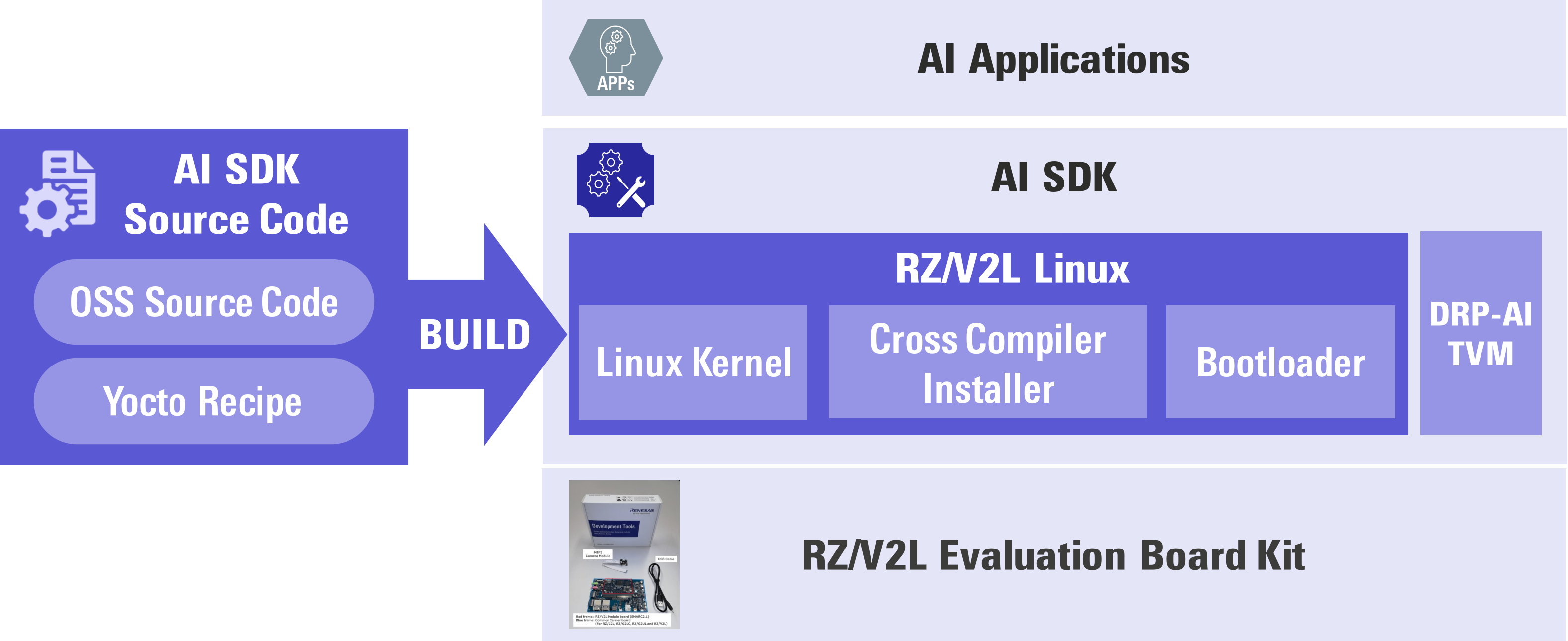
AI SDK is a quick and easy AI Application development environment.
It is specifically made for RZ/V2L Evaluation Board Kit with fixed Linux components.
(For more information, please refer to Getting Started and AI SDK.)

To modify Linux component, you need to build AI SDK from source code.
AI SDK Source Code can generate the same Linux environment as AI SDK.

AI Application and AI SDK software

This page explains how to build AI SDK Source Code.
After you have completed this page, you would be able to change the source code and customize Linux environment (i.e., memory map, additional OSS etc...).

Requirement
  1. Users have launched RZ/V2L Evaluation Board Kit according to Getting Started, which means they can run AI Application on the board.
  2. To build Yocto Linux, the below equipment should be prepared.
    Equipment Details
    Linux PC Approximately 120GB free space is necessary.
    OS Ubuntu 22.04 LTS
    64bit OS must be used.

Now you are ready to build your Linux development environment.
Let's get started!!


Step 1: Obtain RZ/V2L AI SDK Source Code

Download the RZ/V2L AI SDK Source Code from the link below.

Download Link

AI SDK Source Code (RTK0EF0160F*_linux-src.zip) contains following files:
File name Description
README.txt README file.
rzv2l_ai-sdk_yocto_recipe_v*.tar.gz Yocto recipe.
Yocto recipes are text files that contains necessary information to build Yocto Linux.
oss_pkg_rzv_v*.7z OSS package.
OSS package is a set of Open Source Software source code used when building the Yocto Linux.
AI SDK Source Code provides this file to reproduce the same Linux environment provided in RZ/V2L AI SDK.


Step 2: Extract RZ/V2L AI SDK Source Code


This step explains how to extract RZ/V2L AI SDK Source Code zip file.

  1. On your Linux PC, check you have already registered the environment variable WORK with the below command.
    printenv WORK

  2. Make the working directory on your Linux PC.
    mkdir -p ${WORK}/src_setup
  3. Move to the working directory.
    cd ${WORK}/src_setup
  4. Extract RZ/V2L AI SDK Sorce Code zip file.
    unzip <Path to the file>/RTK0EF0160F*_linux-src.zip -d ${WORK}/src_setup
  5. Check the working directory to confirm the package contents.
    ls -1 ${WORK}/src_setup
    • If the above command prints followings, the package is extracted correctly.
      README.txt
      oss_pkg_rzv_v*.7z 
      rzv2l_ai-sdk_yocto_recipe_v*.tar.gz


Step 3: Build RZ/V2L AI SDK Source Code

This step explains how to build Linux environment with RZ/V2L AI SDK Source Code

  1. To install necessary sofware, run the following commands on your Linux PC.
    sudo apt-get update
    sudo apt install build-essential chrpath cpio debianutils diffstat file gawk \
    gcc git iputils-ping libacl1 liblz4-tool locales python3 python3-git \
    python3-jinja2 python3-pexpect python3-pip python3-subunit socat texinfo unzip \
    wget xz-utils zstd
  2. Run the following commands and set the user name and email address before starting the build procedure.
    It is needed to avoid errors when using git command to apply patches.
    git config --global user.email "you@example.com"
    git config --global user.name "Your Name"
  3. Register the working directory path to an environment variable.
    export YOCTO_WORK=${WORK}/src_setup/yocto
    mkdir -p ${YOCTO_WORK}
  4. Extract Yocto recipe package.
    cd ${YOCTO_WORK}
    tar zxvf ${WORK}/src_setup/rzv2l_ai-sdk_yocto_recipe_v*.tar.gz
  5. Check the working directory to confirm Yocto recipes content.
    ls -1 ${YOCTO_WORK}
    • If the above command prints followings, Yocto recipes are extracted correctly.
      extra
      meta-arm
      meta-openembedded
      meta-renesas
      meta-rz-features
      meta-virtualization
      patch
      poky
  6. Initialize a build using the oe-init-build-env script in Poky and set environment variable TEMPLATECONF to the below path.
    cd ${YOCTO_WORK}
    TEMPLATECONF=$PWD/meta-renesas/meta-rz-distro/conf/templates/rz-conf/ source poky/oe-init-build-env build
  7. Run the following commands to add necessary layers for AI application to ${YOCTO_WORK}/build/conf/bblayers.conf (configration file for layers).
    bitbake-layers add-layer ../meta-rz-features/meta-rz-graphics
    bitbake-layers add-layer ../meta-rz-features/meta-rz-codecs
    bitbake-layers add-layer ../meta-rz-features/meta-rz-drpai
  8. Run the following commands to extract the OSS package.
    cp ${WORK}/src_setup/oss_pkg_rzv_*.7z ${YOCTO_WORK}
    7z x ${YOCTO_WORK}/oss_pkg_rzv_*.7z -o${YOCTO_WORK}/build
  9. Check the working directory to confirm the package contents.
    ls -1 ${YOCTO_WORK}/build
    • If the above command prints followings, the package is extracted correctly.
      conf
      downloads
  10. Run the following procedures to apply the patch files.
    1. Apply a patch file for AI SDK settings.
      This patch file applies offline build setting, SD card image size setting, eSD boot setting, Cross Compiler setting, and startup screen setting.
      patch -p1 < ../patch/0000-AI_SDK-settings.patch
      Note The default size of the microSD card image created in this guide is approximately 16 GB.
      If you would like to change the microSD card image size, please refer to D1: Change the size of the microSD card image in WIC format.
    2. Apply a patch file to add Tesseract Open Source OCR Engine for AI applications.
      patch -p1 < ../patch/0001-tesseract.patch
    3. Apply a patch file to add OpenMP for AI applications.
      patch -p1 < ../patch/0002-openmp.patch
  11. Run the following command to build the Linux kernel files.
    (It takes a few hours to finish building depending on the user’s host PC performance)
    MACHINE=smarc-rzv2l bitbake core-image-weston
    All necessary files listed below will be generated by the build command and they will be located in ${YOCTO_WORK}/build/tmp/deploy/images/smarc-rzv2l directory.
    Boot mode File name Description
    eSD core-image-weston-smarc-rzv2l.rootfs.wic.bmap
    core-image-weston-smarc-rzv2l.rootfs.wic.gz
    WIC format SD card image
    QSPI core-image-weston-smarc-rzv2l.rootfs.wic.bmap
    core-image-weston-smarc-rzv2l.rootfs.wic.gz
    Flash_Writer_SCIF_RZV2L_SMARC_PMIC_DDR4_2GB_1PCS.mot
    bl2_bp_spi-smarc-rzv2l_pmic.srec
    fip-smarc-rzv2l_pmic.srec
    Boot loader and WIC format SD card image
  12. Run the following command to build cross compiler installer.
    MACHINE=smarc-rzv2l bitbake core-image-weston -c populate_sdk
    A necessary file listed below will be generated by the build command and the cross compiler installer will be located in build/tmp/deploy/sdk/rz-vlp-glibc-x86_64-core-image-weston-cortexa55-smarc-rzv2l-toolchain-*.sh.
    File name Description
    rz-vlp-glibc-x86_64-core-image-weston-cortexa55-smarc-rzv2l-toolchain-*.sh Cross compiler installer
    Note If some errors occurred during the build, please clean the directory and rebuild it after a period of time according to the below commands.
    cd ${YOCTO_WORK}/build
    MACHINE=smarc-rzv2l bitbake core-image-weston -c cleanall
    And run the build command again.
    • For Linux kernel files
      MACHINE=smarc-rzv2l bitbake core-image-weston
    • For cross compiler installer
      MACHINE=smarc-rzv2l bitbake core-image-weston -c populate_sdk


This is the end of how to build AI SDK Source Code.

You have prepared following files, which is same as the one provided in Step 3: Obtain RZ/V2L AI SDK in Getting Started, and you can run AI Applications according to Getting Started.
For more information on how to use each files, see the link in the How to use column.

Path File name Description How to use
${YOCTO_WORK}/build/tmp/deploy/images/smarc-rzv2l core-image-weston-smarc-rzv2l.rootfs.wic.bmap
core-image-weston-smarc-rzv2l.rootfs.wic.gz
WIC format SD card image Step 7-1: Setup RZ/V2L EVK in RZ/V2L EVK Getting Started
Flash_Writer_SCIF_RZV2L_SMARC_PMIC_DDR4_2GB_1PCS.mot
bl2_bp_spi-smarc-rzv2l_pmic.srec
fip-smarc-rzv2l_pmic.srec
Boot loader used when booting from QSPI D2.How to boot from QSPI in Developer's Guide
${YOCTO_WORK}/build/tmp/deploy/sdk rz-vlp-glibc-x86_64-core-image-weston-cortexa55-smarc-rzv2l-toolchain-*.sh Cross compiler installer After replacing the file in ${WORK}/ai_sdk_setup directory with this file, follow the steps below to setup RZ/V AI SDK.
Step 5: Setup RZ/V AI SDK in Getting Started
Note 1 For more Yocto Project information, please refer the link below:
https://docs.yoctoproject.org/5.0.11/brief-yoctoprojectqs/index.html
Note 2 When customizing Linux development environment, following link may help.
https://docs.yoctoproject.org/
Note 3 Regarding the eSD (Embedded SD) booting, please note the following:
  • The eSD boot procedure using microSD card described in this guide is for evaluation purposes only.
  • If you use the eSD boot, please implement the eSD on your board according to the standard "SD Specification Part 1 eSD Addendum (version 2.10)".


If you have any questions about AI SDK Source Code,
please add new issues to AI SDK GitHub issues.

Go to GitHub issues