The RZ/V2L EVK is the ideal board kit for RZ/V2L evaluation.
Since MIPI camera module is included, you can start evaluating RZ/V2L immediately by building an environment.
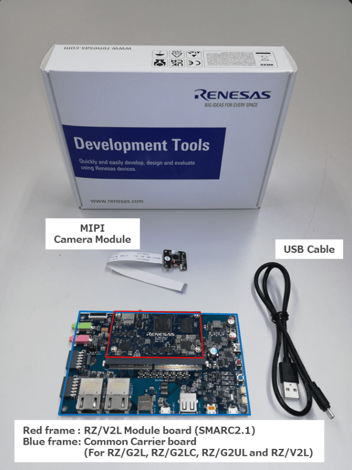
Following items are included in the RZ/V2L EVK.
Equipment
Details
RZ/V2L Evaluation Board
Evaluation board itself.
MIPI Camera Module
Google Coral Camera.
Note that the CMOS sensor (OV5645) in the camera is no longer available, and should not be used for mass production. Any software support provided is for evaluation purposes only.
MicroUSB to Serial Cable
For serial communication between PC and the board.
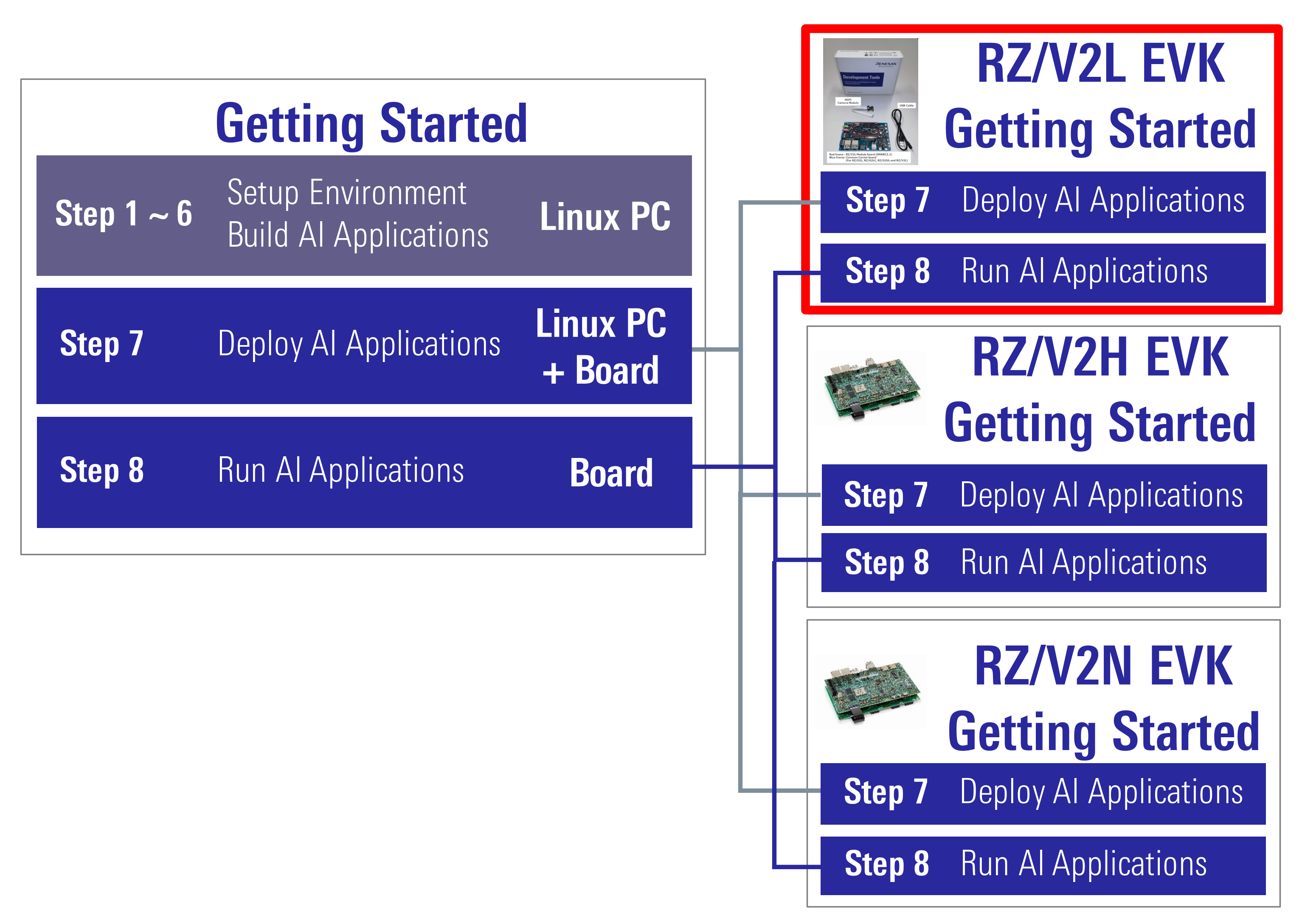
Step 7: Deploy AI Application
This section explains how to deploy the AI Application to the RZ/V2L EVK.
To boot the board, bootloader and other Linux necessary files are required.
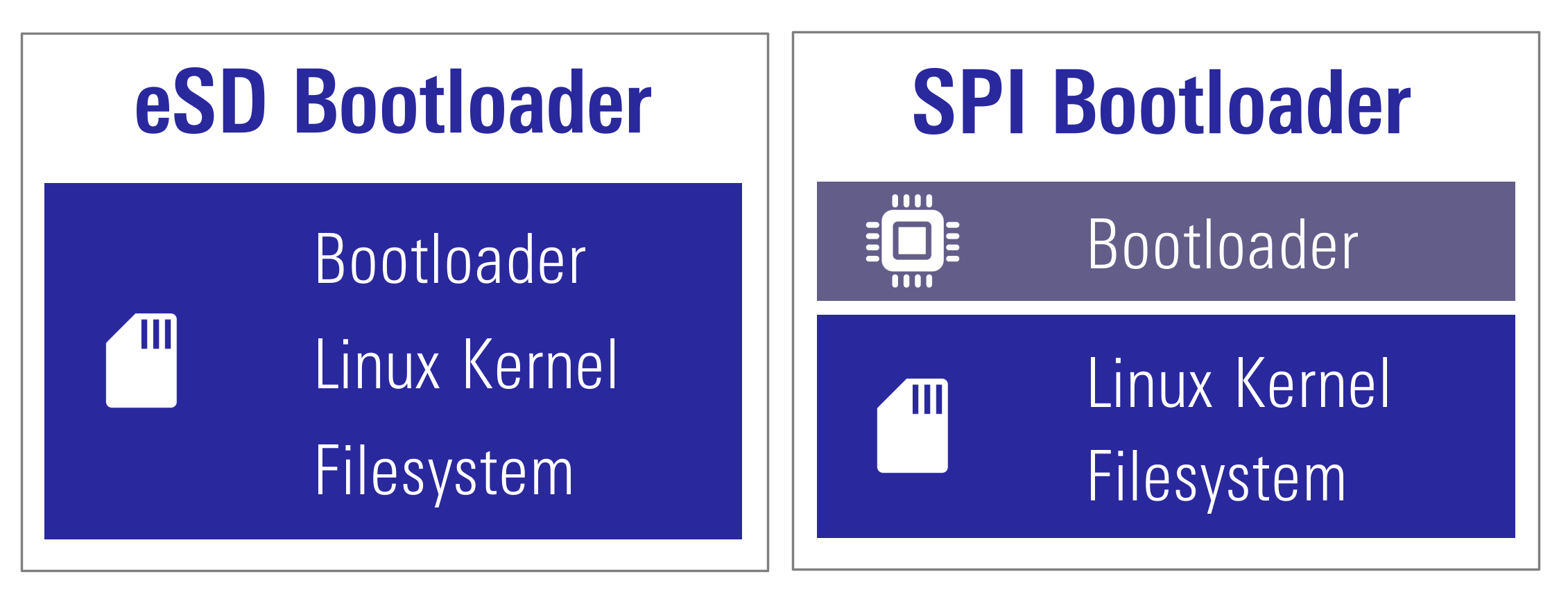
There are two types of bootloader available on RZ/V2L AI SDK.
eSD Bootloader: The board boots up using the bootloader written on microSD card.
QSPI Bootloader: The board boots up using the bootloader written in Flash ROM on the board.
Other necessary files, i.e. Linux kernel and root filesystem, are stored on microSD card.
You can use Linux PC to format the microSD card and expand the kernel and the root filesystem using SD card reader.
Note
Regarding the eSD (Embedded SD) booting, please note the following:
The eSD boot procedure using microSD card described in this guide is for evaluation purposes only.
If you use the eSD boot, please implement the eSD on your board according to the standard "SD Specification Part 1 eSD Addendum (version 2.10)".
Preparation
Click the button
This step contains both eSD and QSPI Bootloader explanation.
Please click the button below to update the explanation according to your bootloader interface.
eSD BootloaderQSPI Bootloader
For eSD
eSD explanation will be shown in this style if you click "eSD Bootloader" button above.
For QSPI
QSPI explanation will be shown in this style if you click "QSPI Bootloader" button above.
1. Setup RZ/V2L EVK
For eSD
microSD card needs to contain bootloaders, the Linux kernel and root filesystem to boot-up the board.
You can use Linux PC to format the microSD card and expand the kernel and the root filesystem using SD card reader.
Note
This step is required only when starting the AI SDK or when using the new version of AI SDK.
If you have already setup the microSD card with the latest bootloader, Linux kernel, Linux device tree file and root filesystem, skip this step and proceed to the next procedure (2. Deploy Application to the Board).
For QSPI
microSD card needs to contain the Linux kernel and root filesystem to boot-up the board.
RZ/V2L AI SDK supports the WIC format for SD card image.
You can use Linux PC to write the SD card image into microSD card with SD card reader.
Bootloaders must be written in Flash ROM on the board.
You can use Windows PC to write the bootloaders on Flash ROM.
Note
This step is required only when starting the AI SDK or when using the new version of AI SDK.
If you have already setup the microSD card and the bootloader written in Flash ROM on the board, skip this step and proceed to the next procedure (2. Deploy Application to the Board).
Note
The size of WIC format SD card image is 16GB.
If you would like to expand the SD card image size, please build the RZ/V2L AI SDK Source Code according to How to Build RZ/V2L AI SDK.
Install Necessary Software
As explained in Necessary Software of Getting Started Step 2, make sure that bmap-tools is installed on Linux PC.
If you have not installed the bmap-tools, install it using following command on Host PC (Not in the docker container).
sudo apt install bmap-tools
Write the Linux files to SD card
For eSD
At first, run the below command to decompress ${WORK}/board_setup/eSD.zip.
cd${WORK}/board_setup
unzip eSD.zip
Following files are necessary.
They are in the ${WORK}/board_setup/eSD directory.
For QSPI
Run the below command to decompress ${WORK}/board_setup/QSPI.zip.
cd${WORK}/board_setup
unzip QSPI.zip
Following files are necessary.
They are in the ${WORK}/board_setup/QSPI directory.
File
Description
core-image-weston-smarc-rzv2l.rootfs.wic.bmap
SD card image
core-image-weston-smarc-rzv2l.rootfs.wic.gz
Follow the instruction below to prepare the microSD card.
Before inserting the microSD card to your Linux PC, open the terminal on Linux PC and run the following command to check the devices without microSD card.
lsblk
Following is the example output.
NAME MAJ:MIN RM SIZE RO TYPE MOUNTPOINT
sda 8:0 0 30.9G 0 disk
├─sda1 8:1 0 512M 0 part /boot/efi
├─sda2 8:2 0 1K 0 part
└─sda5 8:5 0 30.3G 0 part /
sr0 11:0 1 1024M 0 rom
Insert the microSD card to your Linux PC and run the following command again.
lsblk
Check the output and confirm the name appeared. This would be your microSD card device name.
Following is the example output.
NAME MAJ:MIN RM SIZE RO TYPE MOUNTPOINT
sda 8:0 0 30.9G 0 disk
├─sda1 8:1 0 512M 0 part /boot/efi
├─sda2 8:2 0 1K 0 part
└─sda5 8:5 0 30.3G 0 part /
sdb 8:16 1 29.7G 0 disk
└─sdb1 8:17 1 29.7G 0 part
sr0 11:0 1 1024M 0 rom
In this case, followings are your microSD card configuration.
/dev/sdb: The device name for the entire microSD card.
/dev/sdb1: The partition name in microSD card. There may be multiple sdb* depending on the microSD card.
Warning
Be careful not to use the name of other device since it may destruct your computer filesystem.
To use bmaptools, microSD card partitions must be unmounted.
Run the following command to check the automatically mounted microSD card partitions.
df-h
Check the output and find the mount point, which is "/media/user/9016-4EF8" in the following example.
Filesystem      Size  Used Avail Use% Mounted on
:
snip
:
/dev/sdb1        15G   32K   15G   1% /media/user/9016-4EF8
Warning
Here, we use "/dev/sdb" as microSD card device name.
Unmount the automatically mounted partitions.
sudo umount /media/user/9016-4EF8
Note
If there are more than one partitions on microSD card, unmount all partitions.
Run the following command to mount the partition 2, which contains the root filesystem.
sudo mkdir /mnt/sd -psudo mount /dev/sdb2 /mnt/sd
Warning
Change /dev/sdb to your microSD card device name.
Create the application directory on root filesystem.
sudo mkdir /mnt/sd/home/weston/tvm
Note
Directory name tvm can be determined by user.
Copy the necessary files in execution environment.
Select the appropriate option below based on the application type explained in Getting Started Step 6.
Option 1: <Application 1>
Check the README.md document provided in application directory and follow the instruction in the chapter called "Application: Deploy Stage" (or similar) to deploy the application.
Example:
In R01_object_detection application, follow the instruction in here to find files to be copied.
Use the following command to copy the files to root filesystem.
sudo cp$WORK/ai_sdk_setup/data/<Path to target file>/<filename> /mnt/sd/home/weston/tvm
Option 2: <Application 2>
Run the following command to copy the whole repository to the root filesystem.
sudo cp$WORK/ai_sdk_setup/data/<Path to repository>/RZV2L_AiLibrary /mnt/sd/home/weston/tvm -r
Run the following command to sync the data with memory.
sync
Run the following command to unmount the partition 2.
sudo umount /mnt/sd
Eject the microSD card by running the following command and remove the microSD card from Linux PC.
sudo eject /dev/sdb
Warning
Change /dev/sdb to your microSD card device name.
3. Boot RZ/V2L EVK
This section explains how to boot the RZ/V2L EVK.
eSD BootloaderQSPI Bootloader
Follow the instruction below to boot the board.
For eSD
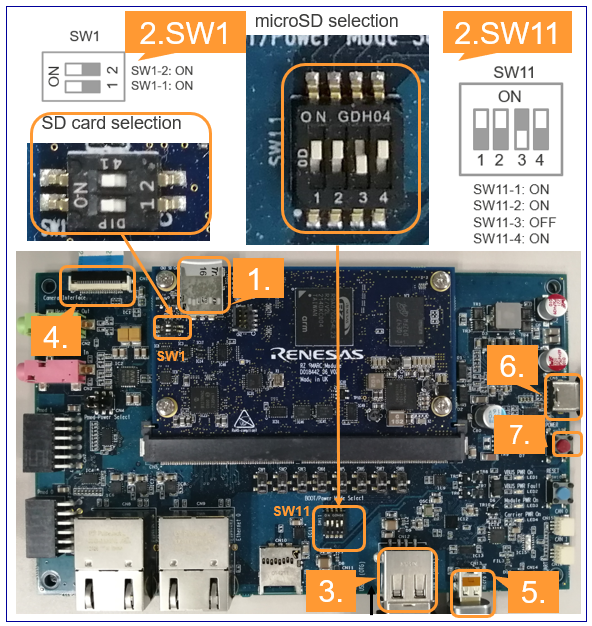
Insert the microSD card to the Board.
Note
Use the microSD card slot CN3 as shown in the figure.
Change SW1 and SW11 setting as shown in the figure.
Connect the USB mouse and USB keyboard via USB hub.
Connect the Google Coral camera to the Board.
Connect the HDMI monitor to the Board.
Connect the power cable to the Board.
Press power button for 1 second to turn on the board.
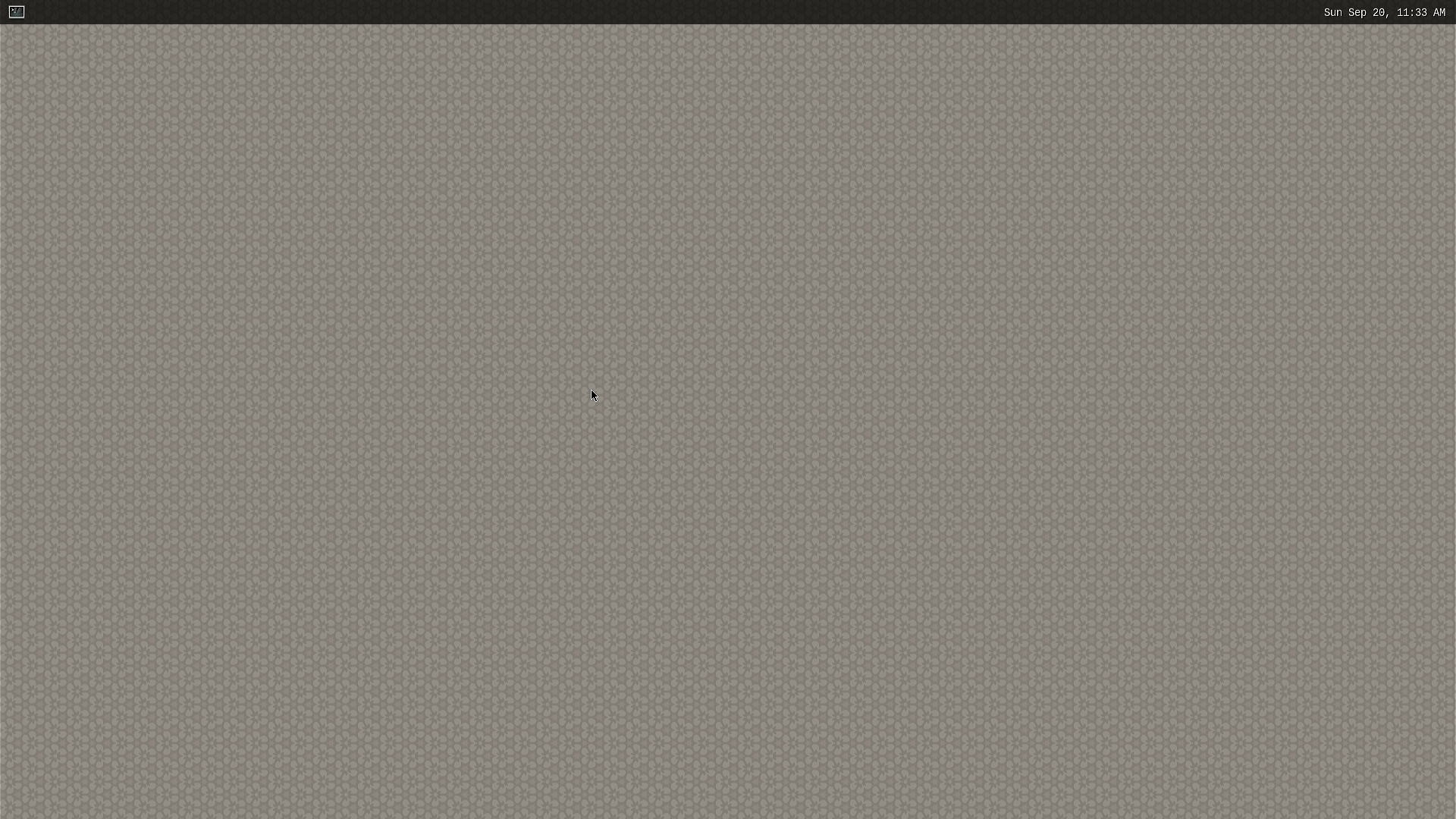
After the boot-up, following screen will be displayed on HDMI monitor.
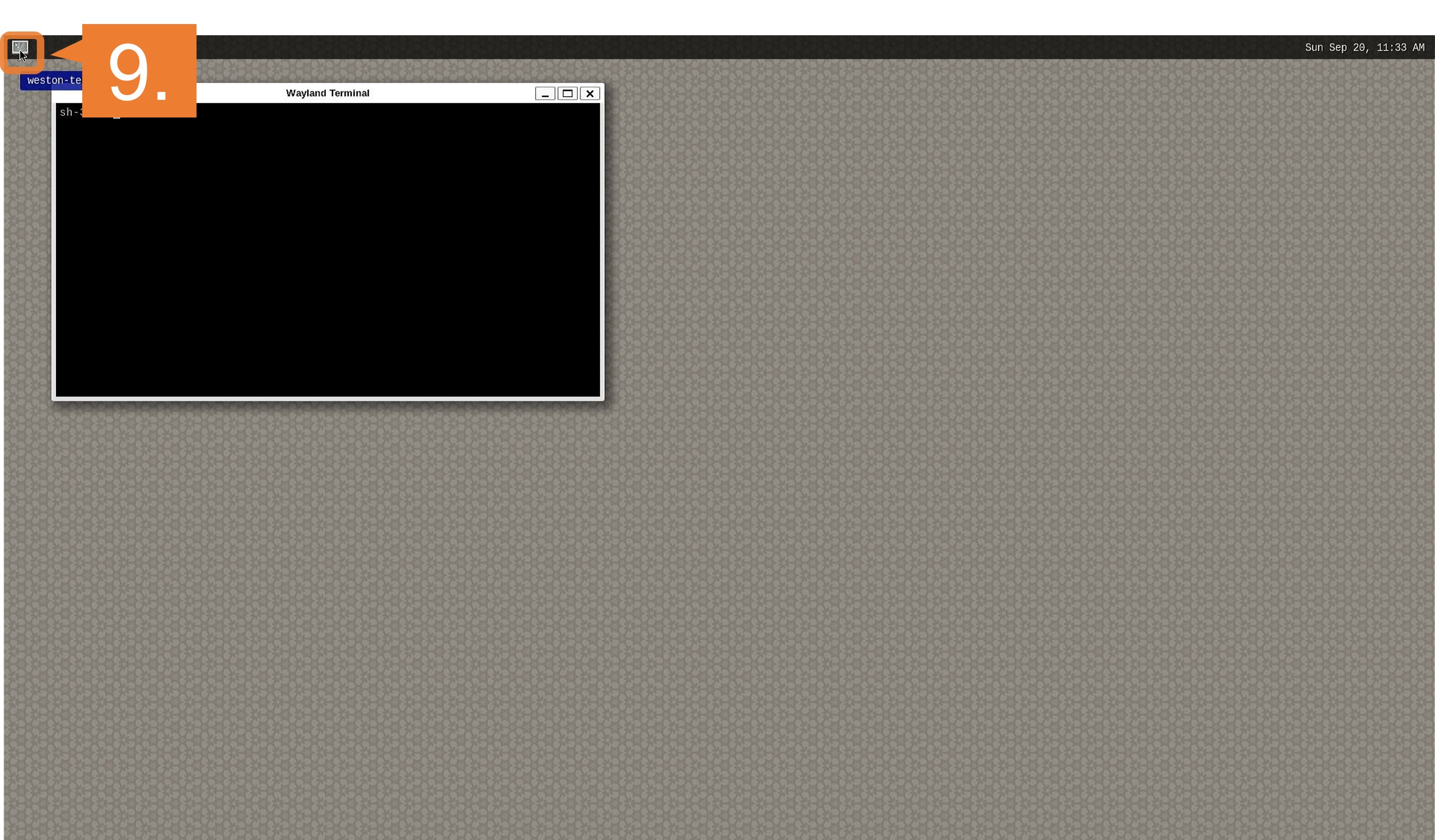
Click the icon at the top-left corner to open the terminal.
For QSPI
Note
After bootloader is written and U-boot setting is changed, terminal emulator is no longer needed.
Users can detach the serial port connection.
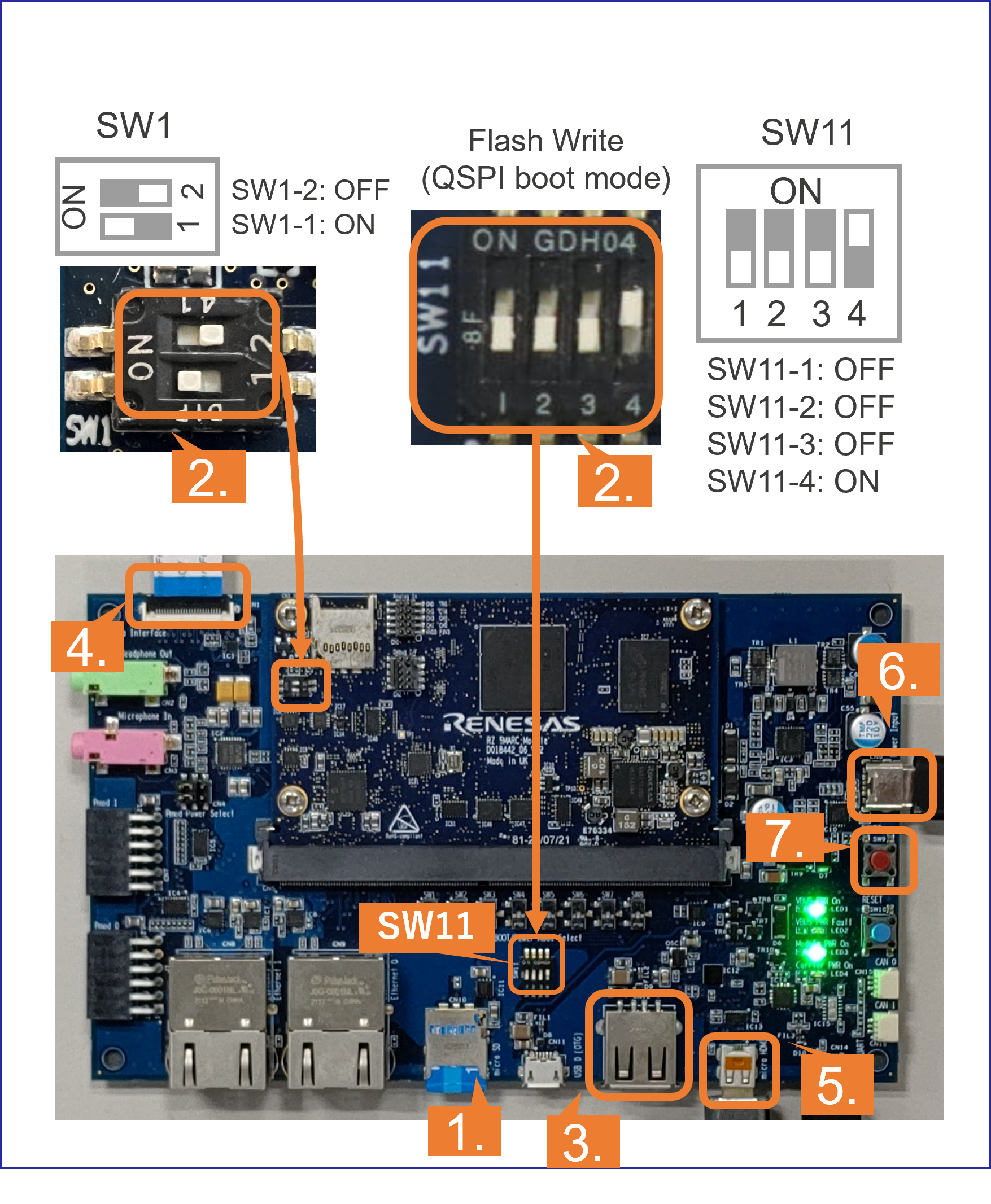
Insert the microSD card to the Board.
Note
Use the microSD card slot CN10 as shown in the figure.
Change SW1 and SW11 setting as shown in the figure.
Connect the USB mouse and USB keyboard via USB hub.
Connect the Google Coral camera to the Board.
Connect the HDMI monitor to the Board.
Connect the power cable to the Board.
Press power button for 1 second to turn on the board.
After the boot-up, following screen will be displayed on HDMI monitor.
Click the icon at the top-left corner to open the terminal.
Follow the instructions explained in the document (README.md) of applications on GitHub.
Example:
For R01_object_detection application, follow the instruction here to run the application.
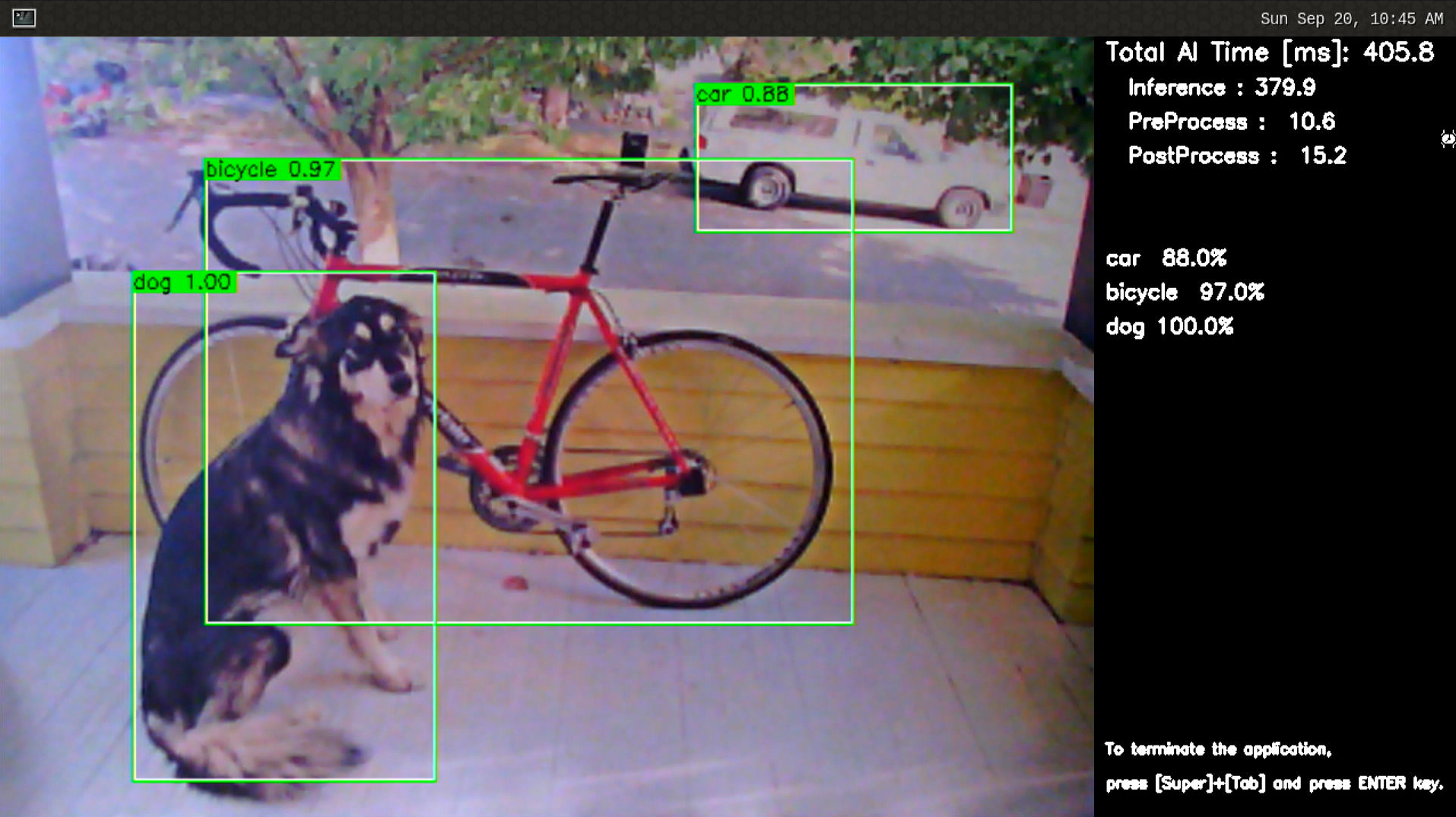
If you have successfully run the application, you will see following window on HDMI screen.